



The Jobs page is where you will create view your migration job(s).
Jobs Dashboard
The dashboard provides a high-level status summary for all jobs in the system.
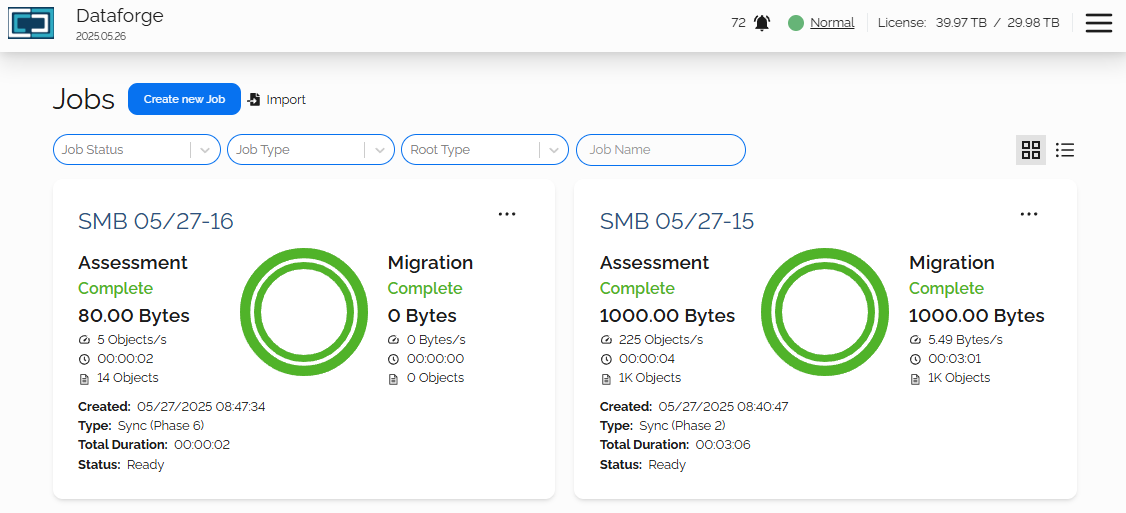
When a job is added to the system, an information box for that job will be added to the Jobs Dashboard. There are two ways to view the data:
- A tile view that displays job information graphically
- A List view that displays data in a table
You can filter your view with the following options:
- Job Status: Ready, Running, Paused, Complete or Error
- Job Type: One-time Copy or Sync
- Root Type

Job name is a free text area that will filter out based on what you have named your jobs.
What is a Job?
A job simply put is a source to target migration. Each job can be configured as a single source migrating to a single target or multiple sources to multiple targets depending on your migration needs.
The magic of DataForge starts with the ability to mix and match source to target storage types a single job. Alternatively you can create a new job for root if you require granularity.
SMB Example: You can choose to migrate an entire file system at the root level or breaking the sub folders up as separate roots.
Why would I want to break up the file system into separate roots or jobs?
If you are migrating a single source storage to a single target storage, migrating at the root level will be very simple:
- Source storage path: \\old-server-path\root-folder
- Target storage path: \\new-server-path\root-folder
In a more complex SMB migration, you may need to migrate different sub folders to either differently name sub folders or another storage server. Here is where you can either add these changes as multiple source/target roots in a single job or add each sub folder as single job:
Single SMB job example:
- Source storage path #1: \\old-server\sub-folder-1
- Target storage path #1: \\new-server\differently-named-sub-folder-1
- Click Add button
- Source storage path #2: \\old-server\sub-folder-2
- Target storage path #2: \\new-server\sub-folder-2
- Click Add button
Will look like this:

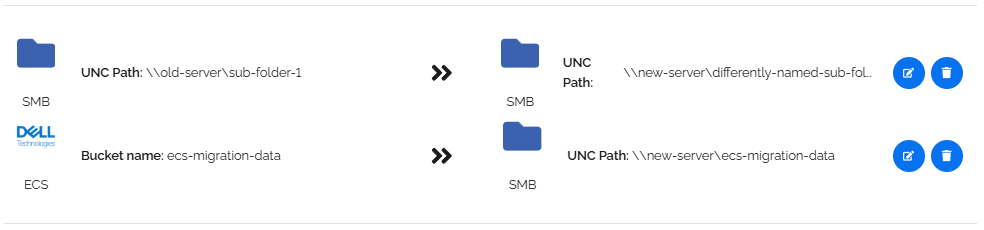
Single mixed root job example:
- Source storage path #1: \\old-server\sub-folder-1
- Target storage path #1: \\new-server\differently-named-sub-folder-1
- Click Add button
- Source ECS storage: ecs-migration-data
- Target SMB storage: \\new-server\ecs-migration-data
- Click Add button
Will look like this:
Job Types
When creating a migration job, you will need to decide if the job will be run as a One-time Copy or Sync.
One-time copy
This job type is meant for static source data. Data that will not be altered or deleted by user, application or retention policies for the duration of the assessment and migration.
Once the one-time job migration has complete, there will be no ability to assess or migrate any further without creating a new job.
Sync job
This job type is meant for a dynamic source store. Data that will be altered and/or deleted during the assessment and migration.
Sync Job Definition
Sync jobs use what we call phases. Each phase is a delta. If you are migrating dynamic data, run as a sync, perform as many deltas as you need until cutover.
After the initial migration, any new phases will synchronize objects from source to target. Each phase migration will only copy new or changed files / objects, as well as removing target objects that are no longer on the source
A typical scenario for a sync job would be
- Start Assessment (phase 1)
- Start Migration (phase 1)
- Schedule your cutover with your team
- Launch new phase (phase 2, delta 1)
- Start Assessment for phase 2
- Start Migration for phase 2
- Cutover
- In the web GUI enable manual mode. This tells DataForge that this will be the final phase / delta
- The last phase will automatically be created (phase 3, delta 2)
- Start Assessment for phase 3
- Start Migration for phase 3
- Run compliance reports if required
For Sync jobs, the time to complete assessment will typically be the same for each phase depending on how much additional data has been added. The migration phase will be much quicker as it will only update the target, with changes on the source.

