



Credentials are used to access job network resources. You can create and manage credentials, as well as associate credentials with both source and target roots.
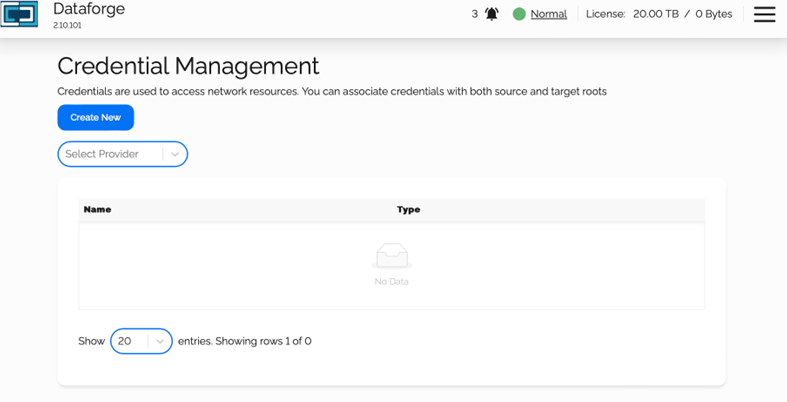
Depending on your environment, you may need to create 2 credentials:
- The source credentials would only need read access, as DataForge is not altering anything on the source.
- The target credentials will need read and write access, as DataForge will need write data and depending on your use case, set additional information like permissions etc.
Please note: For all jobs, the user of the target credentials will be the owner of that object by default.
Create New Credentials
When you click Create New, you will have the option to select your storage type. Depending on your environment or migration storage needs, you may need to create separate credentials for both source and target.
The current vendor list for selection are:

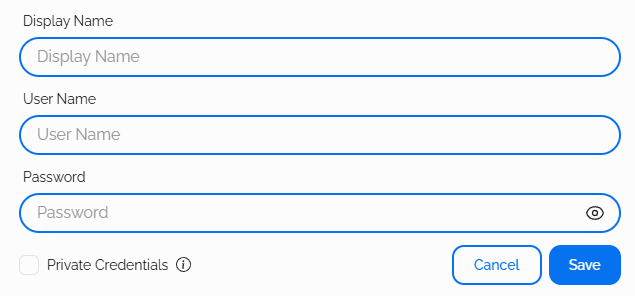
NAS / SMB
- Display Name: Name used to identify credentials
- Username Format: domain\username
- Password: Supplied by your organization
Optional:
- Private Credentials: Used to conceal credentials from being viewed or edited
NFS
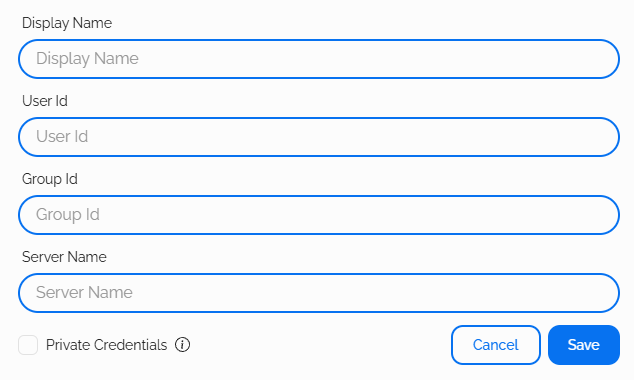
- Display Name: Name used to identify credentials
- User ID: The Unix / Linux UID
- Group ID: The Unix / Linux GID
- Server Name: The IP address or FQDN of NFS server
Optional:
- Private Credentials: Used to conceal credentials from being viewed or edited
NetApp StorageGrid / Generic S3
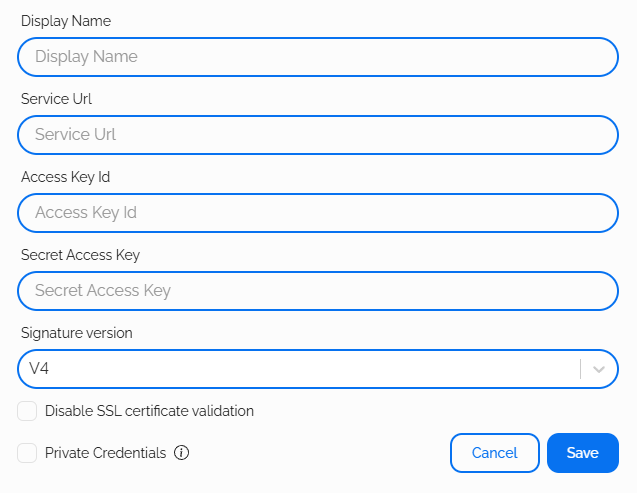
- Display Name: Name used to identify credentials
- Service URL: Web address of your StorageGrid server
- Access Key ID: Supplied by your organization
- Secret Access Key: Supplied by your organization
- Signature Version: Select V4 (default) or V2 (deprecated)
Optional:
- Disable SSL certificate validation: When using https:// Service URL, if required
- Private Credentials: Used to conceal credentials from being viewed or edited
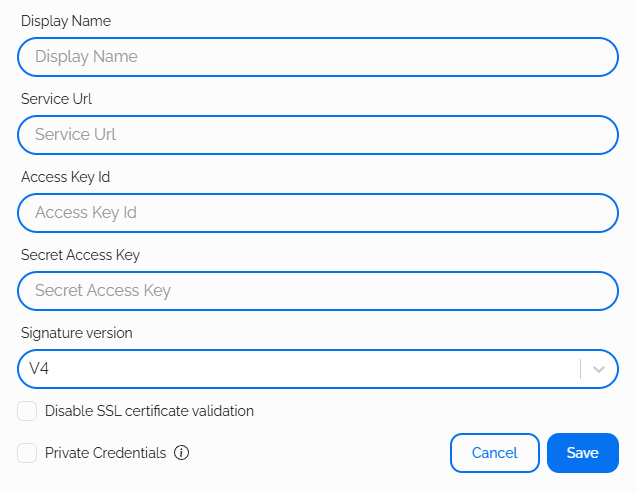
Amazon AWS S3 / Generic S3
- Display Name: Name used to identify credentials
- Service URL: Web address of your AWS or Generic S3 server
- Access Key ID: Supplied by your organization
- Secret Access Key: Supplied by your organization
- Signature Version: Select V4 (default) or V2 (deprecated)
Optional:
- Disable SSL certificate validation: When using https:// Service URL, if required
- Private Credentials: Used to conceal credentials from being viewed or edited
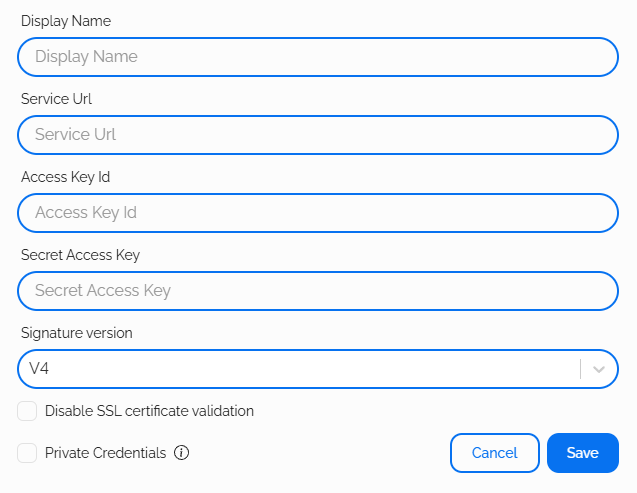
Dell ECS / Generic S3
- Display Name: Name used to identify credentials
- Service URL: Web address of your ECS S3 or Generic S3 server
- Access Key ID: Supplied by your organization
- Secret Access Key: Supplied by your organization
- Signature Version: Select V4 (default) or V2 (deprecated)
Optional:
- Disable SSL certificate validation: When using https:// Service URL, if required
- Private Credentials: Used to conceal credentials from being viewed or edited
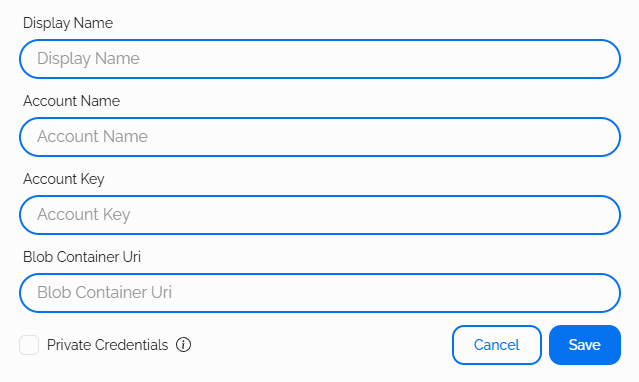
Microsoft Azure
- Display Name: Name used to identify credentials
- Account Name: Supplied by your organization
- Account Key: Supplied by your organization
- Blob Container URI:
- https://<storage-account>.blob.core.windows.net/<container-name>
Optional:
- Private Credentials: Used to conceal credentials from being viewed or edited
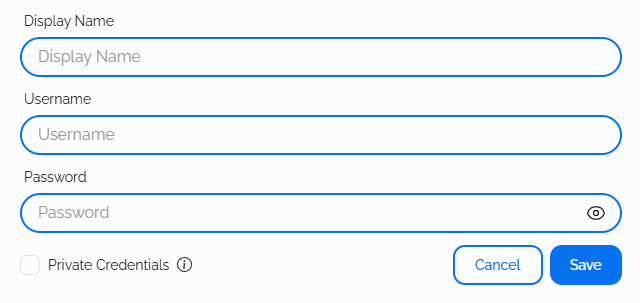
Hitachi HCP
- Display Name: Name used to identify credentials
- Username: Tenant user, supplied by your organization
- Password: Tenant password, supplied by your organization
Optional:
- Private Credentials: Used to conceal credentials from being viewed or edited
Edit Credentials
* Please note: For security purposes, credentials created with Private Credentials can not be view or edited, only deleted.
The Credentials Management landing page will display all credentials in your current DataForge instance. The Select Provider dropdown will allow you to filter credentials based on the storage type the credentials were created for.
- Select the Edit icon. The Edit Credentials pop-up window appears
- Select the storage type from the icon list at the top of the window
- Edit the information as needed

