



The DataForge system can be used immediately after installation if the project’s data migration requirements are simple and a single user will access the system and manage the migration project.
The default login is:
- Username: [email protected]
- Password: dataforge
All user actions are recorded for auditing purposes. If you require granular accountability, it is recommended that the Administrator set up user accounts for all project staff before data migration begins.
Two types of user accounts with different authorization levels can be created:
- Administrator Role: Authority to oversee and alter all job parameters
- Data Engineer Role: Authority to perform migration tasks, including to start, stop, and monitor jobs
The Users page allows administrators to create or change the organization name, and to update current users.
Create User Account
To create Administrator and Data Engineer accounts, perform the following steps:
- Click the Settings menu icon in the upper right corner of the main screen
- Click User Management.
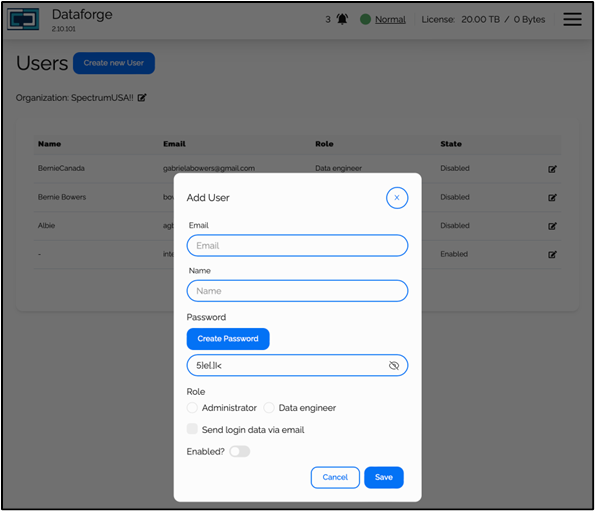
- Enter the user’s email address and name
- A password can be assigned manually or the password generator can be used. To use the password generator, press the Create Password button and a random password will automatically generate in the password field
- In the Role section, select Administrator (the user has full access to the system) or Data Engineer (the user can start, monitor, and stop migrations)
- Select the Send login data via email checkbox if appropriate. * Requires Email Notifications Setup
- The Enable/Disable Toggle Switch activates or disables a user account; select the desired setting for the user
- Click Save
Manage User Accounts
To update an existing user perform the following steps:
- Optionally click on the column titles to sort the data alphabetically
- Select a user from the list.
- To update a current user, select the user name, click the Edit icon, update as needed, then click Save

