



A DataForge Classic license is issued per assessment, and you will not be able to generate a license request until you have completed your job assessment.
Each assessment you create, will require it's own unique activation code for migration.
When you have completed your assessment, click on the Activation tab in the DataForge Classic GUI. You will see the following:
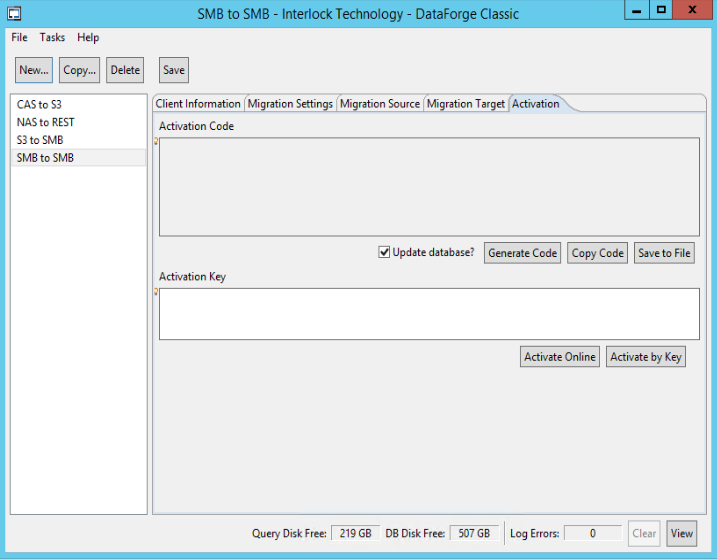
- Click on the Generate Code button.
- You will see the Activation Code window populated.
- Click the Save button above Client Information tab
- Click on Save to File button below Activation Code window
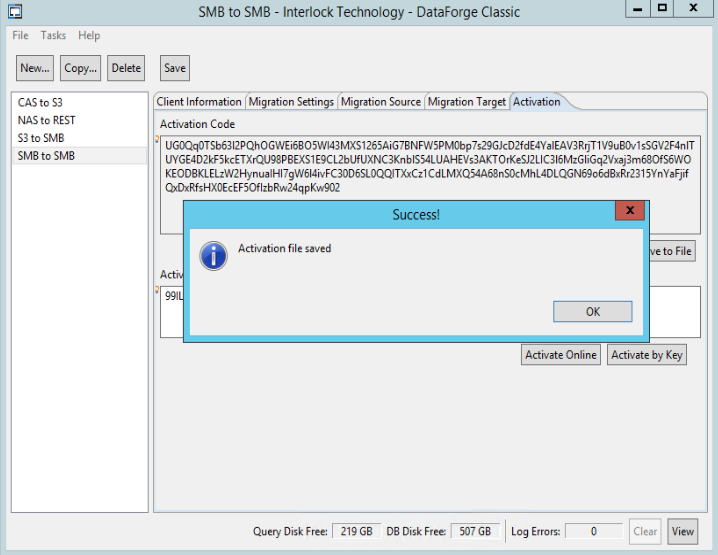
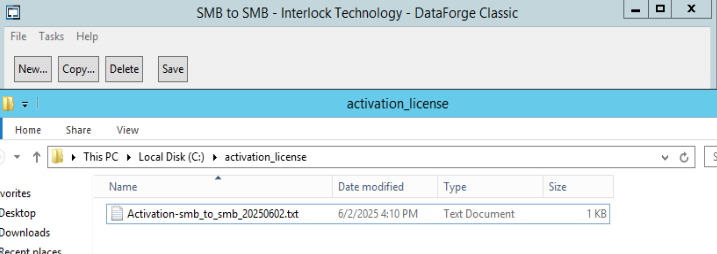
You will see the activation code saved as a text file with the naming format:
Activation_(assessment name)_(date assessment created).txt
Follow this link:
Submit a license request ticket and upload your assessment activation code.
Interlock will reply to your ticket with a license key.
Paste the issued license key into the Activation Key window and click the Activate by Key button.
Click the Save button above Client Information tab
You are now ready to migrate.
** Please note: The Activate Online button is meant for Interlock Employees and will not work for you.

